
Interview help
Fix a problem with your interview or test
Find your problem below and follow the steps in order. The fixes use the exact messages and buttons you see on screen.
In a Skill Test or Technical Test the clock keeps running while you're away, so reopen your link quickly.
Quick answers
- Can I refresh a stuck interview?
- Yes. Your progress is saved.
- My connection dropped. What now?
- Reopen your link. In an AI interview, press "Resume Interview".
- Why won't my camera open inside an app?
- App browsers can't use it. Open the link in Chrome or Safari.
- Do I have to pay to submit?
- No. Choose "No thanks. Just submit".
- Can I close the tab while my videos upload?
- No. Keep it open until "Uploading in progress" finishes.
- Who can reopen an inactive interview?
- Only the company that invited you.
The interview is stuck loading, or the next question won't come
After 90 seconds you'll see "Having trouble? Click here for help". Open it, or try these steps in order.
- 1Refresh the page. Your progress in the interview is saved.
- 2Restart your device. Copy your interview link first, then shut down fully, not just sleep, and turn it back on.
- 3Check your connection. Company or public Wi-Fi can block the interview, so try mobile data or home Wi-Fi.
- 4Try another browser, such as Chrome or Firefox, a private window, or another device. Open the original link from your invitation and sign in with the same email. You continue from where you stopped.
A private window gets around browser extensions, but it can also block your camera. If it does, follow the camera steps below.
I lost my connection, closed the tab, or my phone died
In an AI interview
- 1Get back online and reopen the same invitation link.
- 2Sign in with the same email address.
- 3Press "Resume Interview". The button may also say "Click to resume interview".
If the page is still open you'll see "Connection Lost". The "Resume Interview" button works as soon as you're back online. You keep your remaining time and your recorded answers.
In a Skill Test or Technical Test, reopen the link as soon as you can. Their clocks keep running while you're away, and your saved answers are kept.
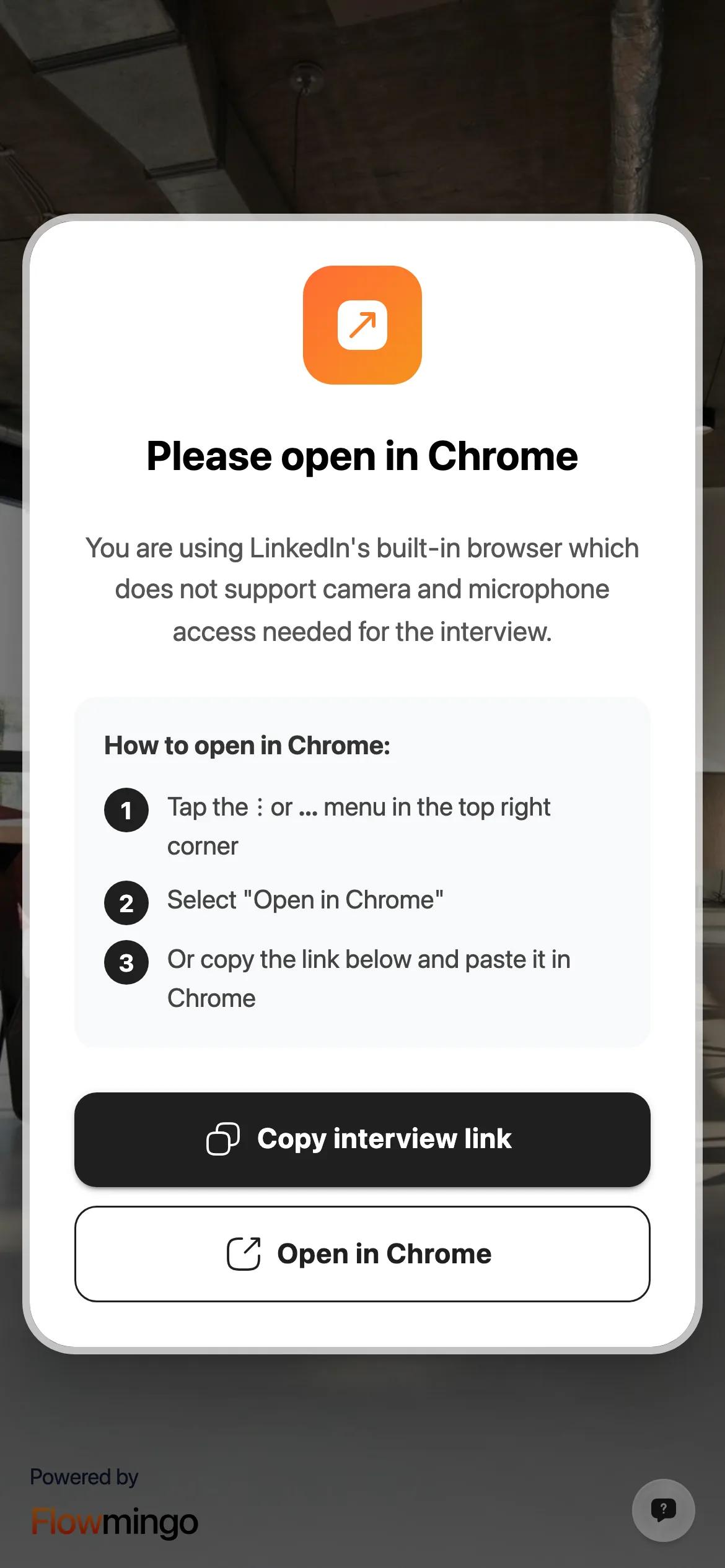
The page asks me to open Chrome or Safari
This happens when you open the invitation inside an app, such as WhatsApp, LinkedIn, Facebook, Instagram, Telegram, Zalo or Gmail. Their built-in browsers can't use your camera and microphone.
- 1Tap the app's menu button, usually 3 dots in the top right corner.
- 2Choose "Open in Chrome", or Safari on an iPhone.
- 3Or press "Copy interview link" and paste it into Chrome or Safari yourself.
On Android you may also see an "Open in Chrome" button that does it for you.
My camera or microphone won't turn on
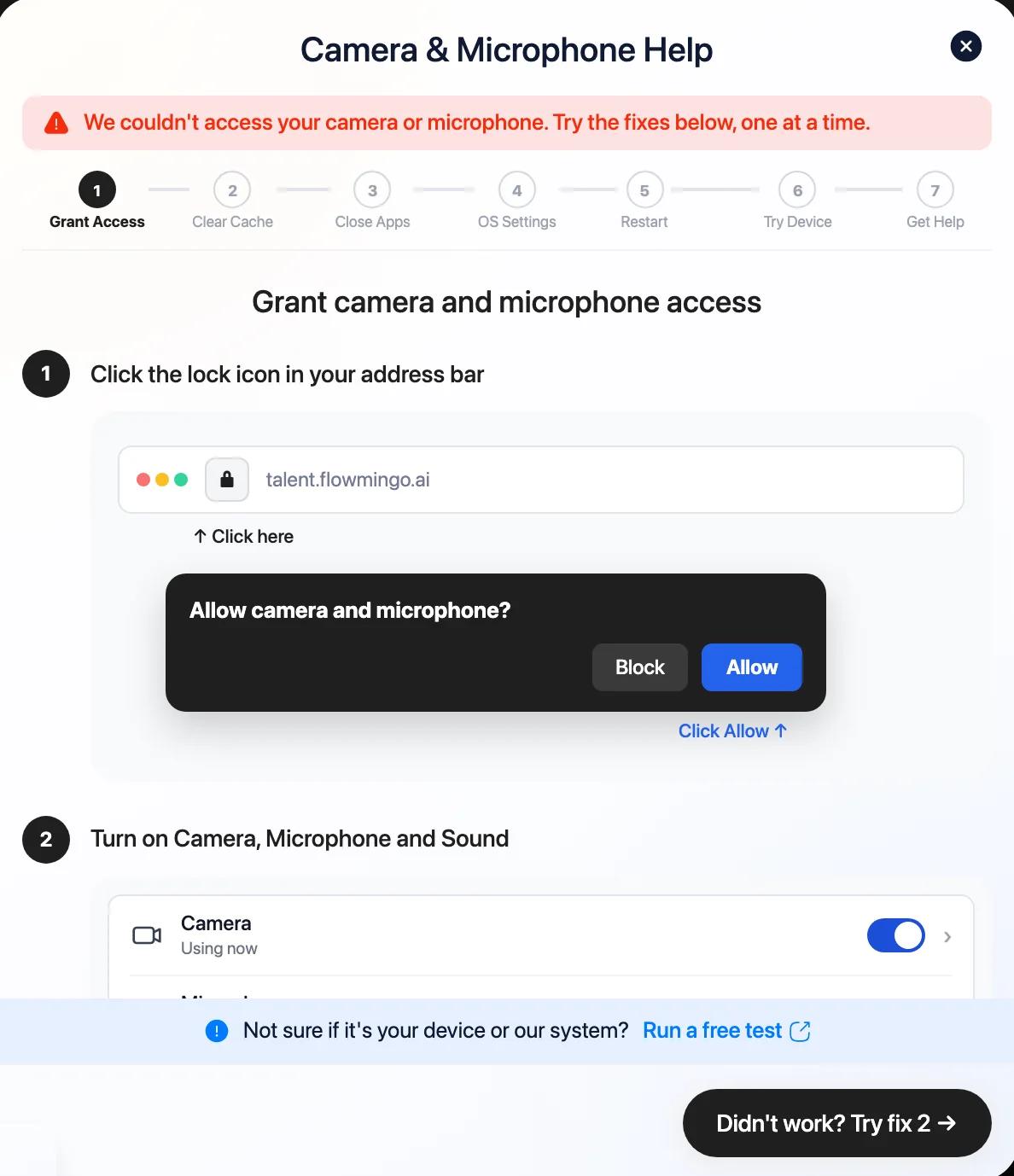
When your browser asks, allow both camera and microphone. If you said no by mistake, change the permission on your device.
Computer
What to doClick the lock icon in the address bar. Turn on Camera, Microphone and Sound, then reload the page.
iPhone with Safari
What to doTap "aA" in the address bar, then "Website Settings". Set Camera and Microphone to Allow, then tap Done.
Android with Chrome
What to doTap the lock or sliders icon in the address bar, then "Permissions". Allow camera and microphone.
If it still fails
- 1Close anything else using the camera, such as Zoom, Meet, Teams, FaceTime, OBS or another browser tab. Only 1 app can use your camera at a time.
- 2Check your computer's own settings. On a Mac open System Settings, on Windows open Settings, then go to Privacy & Security and allow Camera and Microphone for your browser.
- 3Use a normal browser window. Private or Incognito windows and some browser extensions block the camera.
- 4Restart your browser or your device, or try another browser or device.
When access fails, "Camera & Microphone Help" opens on its own and walks you through each fix, starting with "Fix 1 of 7".
The AI can't hear me, or I can't hear the AI
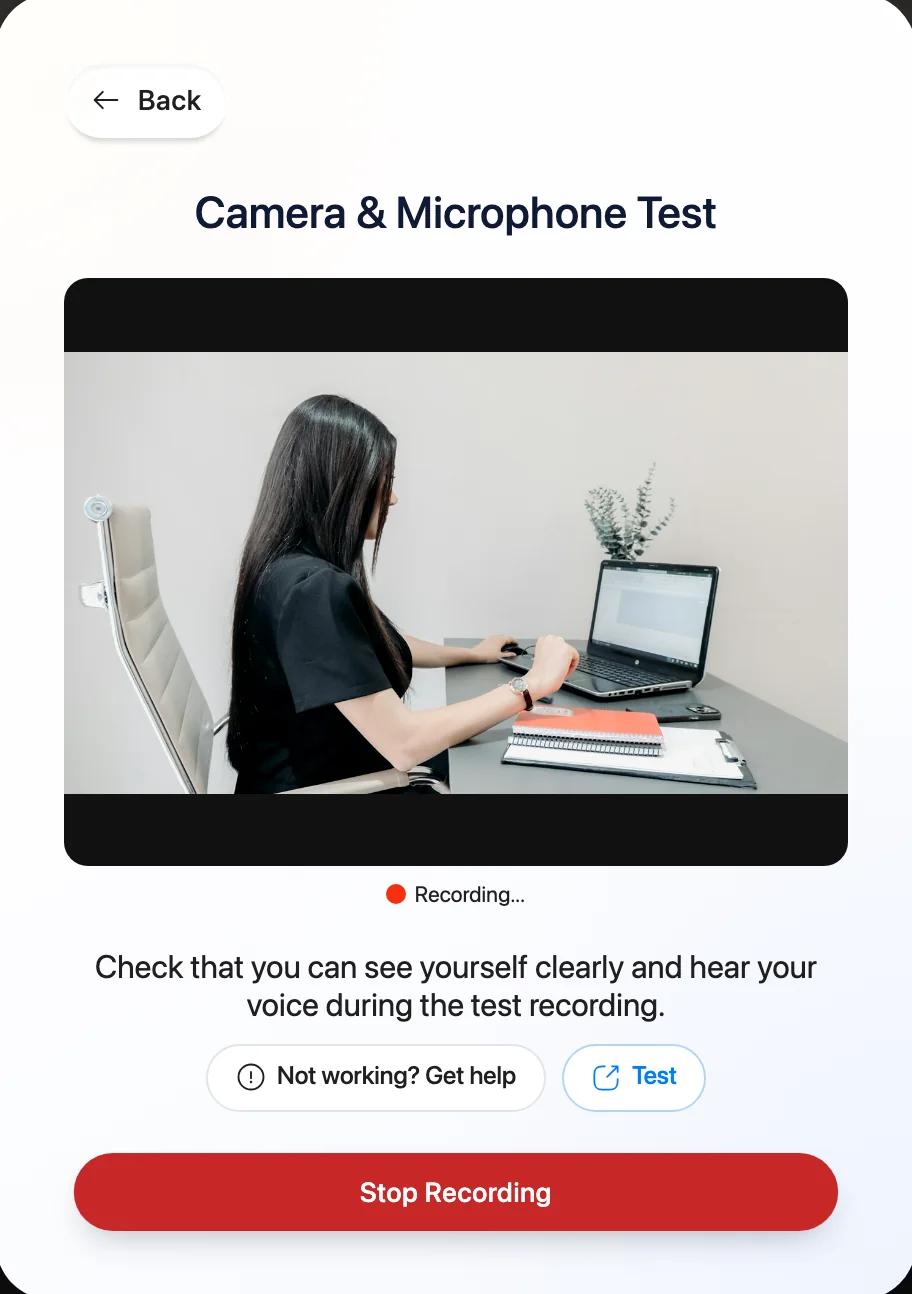
In "Check Audio and Video"
- 1Choose the microphone you are actually using.
- 2Say something and check that the bars turn green.
- 3Press "Test Speaker" and turn up your volume.
- 4If you plugged in headphones after the check, reload the page so they are picked up.
Every question also appears as subtitles, so you can read it if you can't hear it. You can slow the AI down to 0.5x.
My videos are stuck on "Uploading in progress"
- 1Keep the tab open until the upload finishes.
- 2If it fails, wait until your connection is stable.
- 3Press "Try again".
Your videos are kept in your browser until they are uploaded.
I'm being asked to pay to submit
You never have to buy anything to submit your interview.
- 1If your submit button says "1 Improvement", you added a paid improvement. Remove it.
- 2Press "Submit Interview".
- 3When the report offer appears, choose "No thanks. Just submit".
- 4Look for "Interview Submitted Successfully".
If you do nothing, your interview is sent to the company automatically 2 hours after your last answer. The company never needs you to pay to see it.
My sign-in code hasn't arrived, or doesn't work
The code comes from Flowmingo. It has 6 digits and works for 10 minutes.
- 1Check your Spam, Promotions and Updates folders.
- 2After 60 seconds, press "Send again".
- 3Use the newest code. After 5 wrong codes, wait 15 minutes and ask for a new one.
We send at most 5 code emails an hour to the same address.
The page says I don't have access
You may see "The company has not shared access to the interview with you", or "You're signed in with a different email than this interview was sent to".
- 1Sign out.
- 2Sign in with the email address that received the invitation.
- 3Open the invitation link again.
If you still can't get in, contact the company. Only it can give you access.
It says "This interview link is no longer active"
The company removed or closed the interview. Only the company can reopen it, so contact the company that invited you. The "48 hours" in your invitation is a suggestion, not an expiry.
It says "Your interview has already been submitted"
Your interview is done and safe, so there is nothing to submit again. You can't start a new attempt yourself. If something went wrong, ask the company. It can give you a new attempt for free with "Allow retake", and your first attempt is kept. Then open the link with the same email.
The keys don't work in my Skill Test
- 1In the keyboard check, press each key shown once, until it turns green.
- 2If some keys still don't register after 20 seconds, press "Continue anyway".
- 3If E doesn't work, use the "Submit" button on screen to send an answer.
During the test, follow the keys on your screen. Many tests use Tab and Enter, and some use the Space bar. On a phone you hold the pads on screen. When asked to share your screen, choose "Entire Screen". If you leave fullscreen, press "Return to fullscreen".
A Skill Test question disappeared, or I lost time
You hold the keys or the pads to read each question. If you let go for 5 seconds, that question can't be opened again. You answer 1 question at a time, with no skipping or going back.
Breaking a rule takes time off your clock. That includes another tab or app, leaving fullscreen, other keys, or another face on camera. It costs 10 seconds the first time, 20 the second, 30 the third, and more after that.
Your camera and microphone are recorded for the whole test and shared with the company. You can take a 90-second pause for every 5 questions. Outside a pause, the timer keeps running even if you disconnect.
My Skill Test ran out of time, or says "Test expired"
When your time runs out you may be offered paid extra time. You don't have to buy it. Choose "No thanks, submit my answers" to submit for free.
"Test expired" means the deadline for the test has passed. Ask the company for a new invite. AI interviews have no extra time option.
My Technical Test is locked
Your camera, microphone and whole-screen sharing must stay on. If one goes off, the test locks until you press "Turn on" and share again. When the browser asks, choose Entire Screen, not a tab or a window.
The clock keeps running while the test is locked or the tab is closed. Your work saves on its own. Look for "Saving" and "Saved".
Unlike a Skill Test, nothing is blocked and no time is taken off for switching tabs. That activity is shown to the company instead.
On a Mac, if no sharing window appears, allow your browser in System Settings, then Privacy & Security, then Screen Recording.
My Technical Test or Showcase won't open on my phone
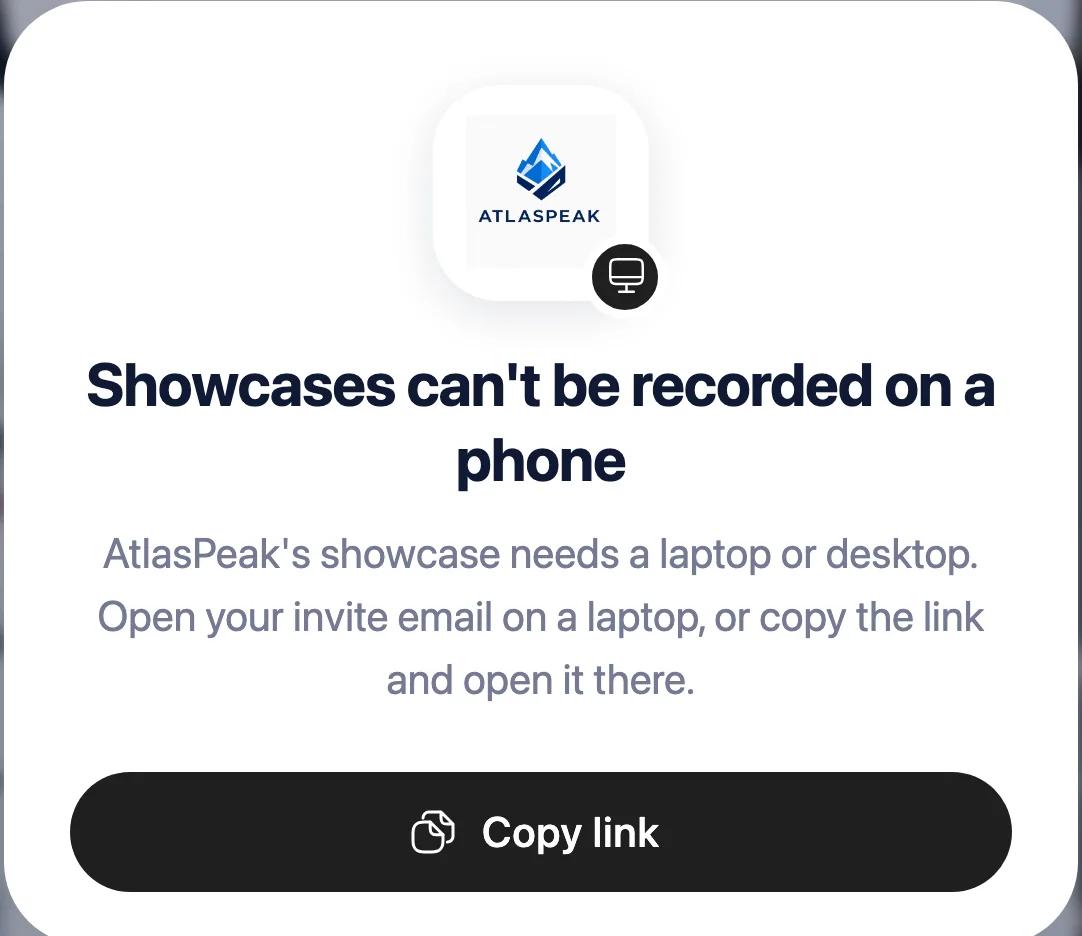
You'll see "This test needs a laptop or desktop" or "Showcases can't be recorded on a phone". Open the same link on a laptop or desktop. Your progress is saved.
A Technical Test needs a physical keyboard and a wide window. Chrome, Edge, Safari and Firefox on a computer all work.
My Showcase asks for payment after extra takes
You record 1 take per task. After the last task you get 2 hours to review, and you can record up to 3 extra takes per task for free.
You pay only at Submit, and only for tasks where you pick an extra take over your original. Keep your originals to submit for free. They are also submitted automatically when the 2 hours end.
Still stuck?
Press "Need help?" in your interview, choose "Interview or access issues" or "Microphone or Camera", and tell us what happened. We reply within 1 working day, Monday to Friday, 9:00 to 18:00 GMT+7. You can also email contact@flowmingo.ai with the company name and the role. Ask the company about the job, a decision, an expired test or a new attempt.